
A tour of the interface
The parts of EduFlow: sidebar, home screen with its chat box, work screens with the assistant panel, AI jobs and cost, Settings, and your first profile.
Updated 15 Oct 2026
Choose your first profile
Right after activation, the Chào thầy cô đến với EduFlow (Welcome to EduFlow) dialog appears. It asks which level you work at, and you tick at least one of three profiles:
- Giáo viên phổ thông (K-12 teacher), ticked by default
- Giảng viên đại học (University lecturer)
- Chuyên viên đảm bảo chất lượng (Quality assurance officer)
A profile only arranges the interface: the tools of the levels you pick are pinned to the top of the sidebar, every level still opens, and no feature is locked by your profile. You can change it at any time in Cài đặt (Settings), on the Hồ sơ làm việc (Work profile) card.
The dialog also offers a sample Math 10 project to look at (it costs nothing). Click Bắt đầu tham quan (Start the tour) to walk through the main areas of the app, or Để sau (Later); to see the tour again, open Trợ giúp (Help) and choose Xem lại hướng dẫn (Replay the guide).
The sidebar
The sidebar on the left has four navigation items: Trang chủ (Home), Dự án (Projects), Sử dụng và chi phí (Usage and cost) and Cài đặt (Settings). Below them sit the K-12 authoring tools, Soạn đề (Write a test) and Soạn bài dạy (Write a lesson); a level that is not in your profile is listed under Cấp khác (Other levels). At the foot are Trợ giúp (Help, with Replay the guide and Shortcuts), the unit name and the key type with the number of devices in use.
On work screens, while the assistant panel is open, the sidebar narrows to a thin strip of icons; the item names remain available to screen readers. The top bar shows whether the computer is Trực tuyến (Online) or Mất mạng (Offline), and the month button (for example Tháng 10 with the amount used against the budget) opens the usage page. Inside a project, the bar shows the path Dự án (Projects) / project name / screen name.
The home screen and the chat box
The home screen opens with a greeting, today's date and the unit name, plus two buttons: Tạo đề (Create a test) and Soạn bài dạy (Write a lesson). In the middle is the chat box with the question "What do you want to write today?": pick a level (Phổ thông, Học phần or Chương trình) and type your request in plain words. Below it you find the Bắt đầu nhanh (Quick start) card (view a sample test, ask the assistant a question, create your first project, write your first test or lesson plan, export a PDF), the Gợi ý cho thầy cô (Suggestions) section (click to fill the box, nothing is sent) and Làm tiếp (Continue), which lists recent projects.
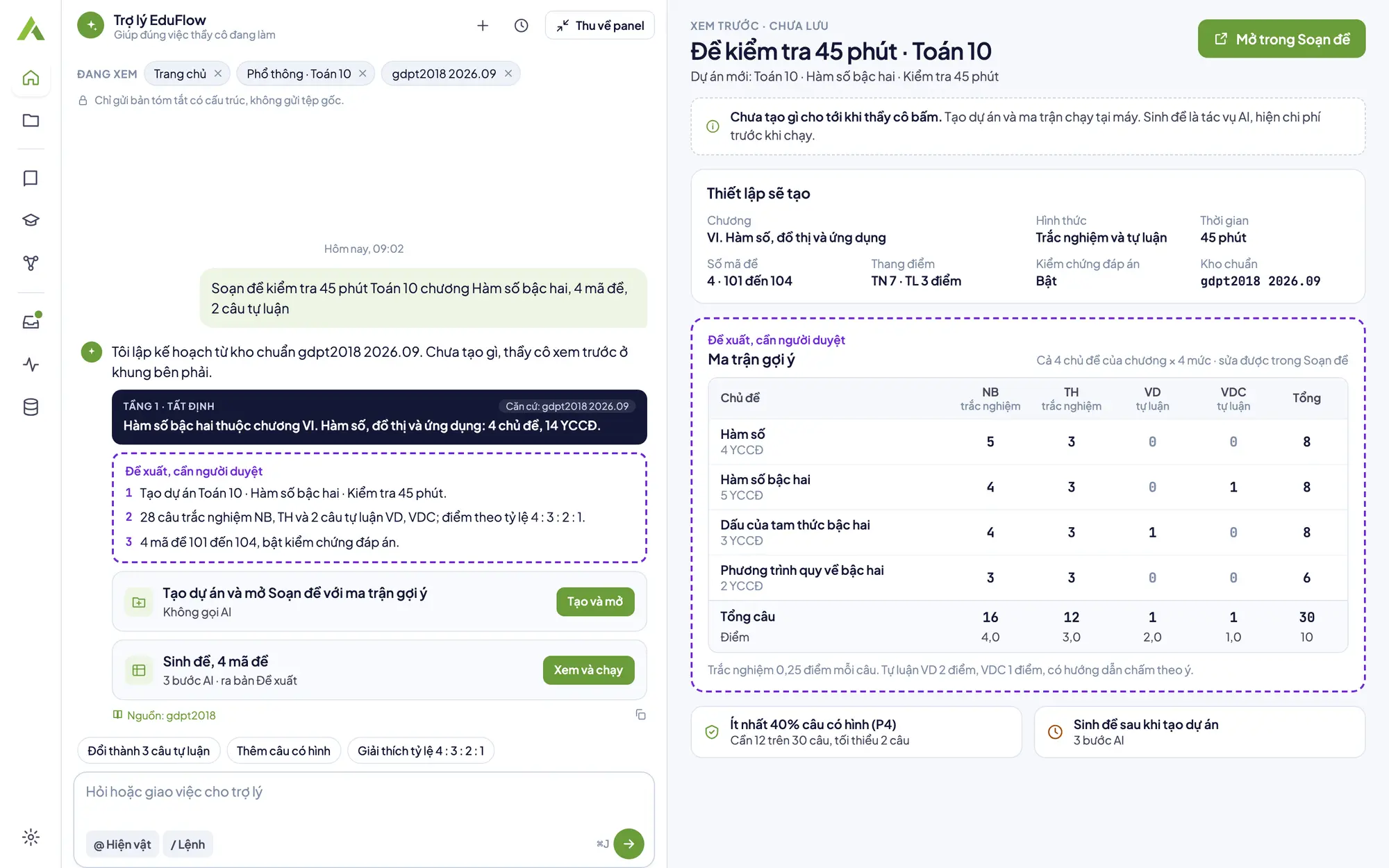
When the assistant proposes a setup, the right side shows a XEM TRƯỚC · CHƯA LƯU (PREVIEW, NOT SAVED) panel and a line saying nothing is created until you click. The assistant only suggests; you review before anything is made. If the computer is offline the assistant cannot answer, but commands that run on the computer still work: type / to choose one.
Work screens and the assistant panel on the right
On every work screen the assistant sits in the panel on the right, named Trợ lý EduFlow (EduFlow assistant) with the line Giúp đúng việc thầy cô đang làm (Helps with what you are working on). It receives the context of the open screen, shown as chips at the top of the panel, and sends only a structured summary, never the original files. The buttons at the top of the panel:
- Cuộc trò chuyện mới (New conversation) and Lịch sử trò chuyện (Conversation history).
- Mở rộng toàn màn (Expand to full screen), then Thu về panel (Back to panel), for more room to chat.
- Thu gọn panel (Collapse the panel) turns the panel into a thin strip; click Mở trợ lý (Open the assistant) to bring it back.
To have the panel open at every start, or to stop attaching the screen context automatically, go to Cài đặt (Settings), the Trợ lý AI (AI assistant) card.
AI jobs and cost
Generating a test, a lesson plan or a slide deck is an AI job. At the setup step the app shows an Ước tính chi phí (Cost estimate) box before it runs; click Chạy (Run) to start or Huỷ (Cancel) to stop, and money is counted only when a job runs. While a job runs, the strip under the step tabs shows its progress with a Huỷ (Cancel) button; if the unit has many AI calls at once, the app continues by itself after a few seconds.
Work that runs on the computer, such as gates, shuffling versions, compiling and reading documents, carries the label Tại máy · 0 ₫ (On this computer · 0 ₫). The Sử dụng và chi phí (Usage and cost) page shows the month's total, the Ngân sách tháng (Monthly budget) with its warn or block mode, tokens in four classes, and cost Theo skill (By skill) and Theo thiết bị (By device). The server fixes each amount using the price list at the time of recording; the app only displays it.
Settings
Cài đặt (Settings) has these cards:
- Key và thiết bị (Key and device): unit, key type, status, end date, with Kiểm tra lại (Check again) and Nhập key khác (Enter another key).
- Hồ sơ làm việc (Work profile): change the levels you picked and replay the guide.
- Trợ lý AI (AI assistant): open the panel at start, attach screen context automatically, how long chat history stays on the computer (30 days, 90 days or no limit), delete history and the shortcut that opens the assistant.
- Riêng tư (Privacy): turn AI off per project; when a project has AI off, none of its content leaves the computer.
- Đăng xuất và xoá kho trên máy này (Sign out and delete the store on this computer), only for when you really want to clear the data on this machine.
The monthly budget belongs to the key and is set by an administrator, not in the app; you see how much has been used on the usage page.