
What are a test blueprint and a test specification table?
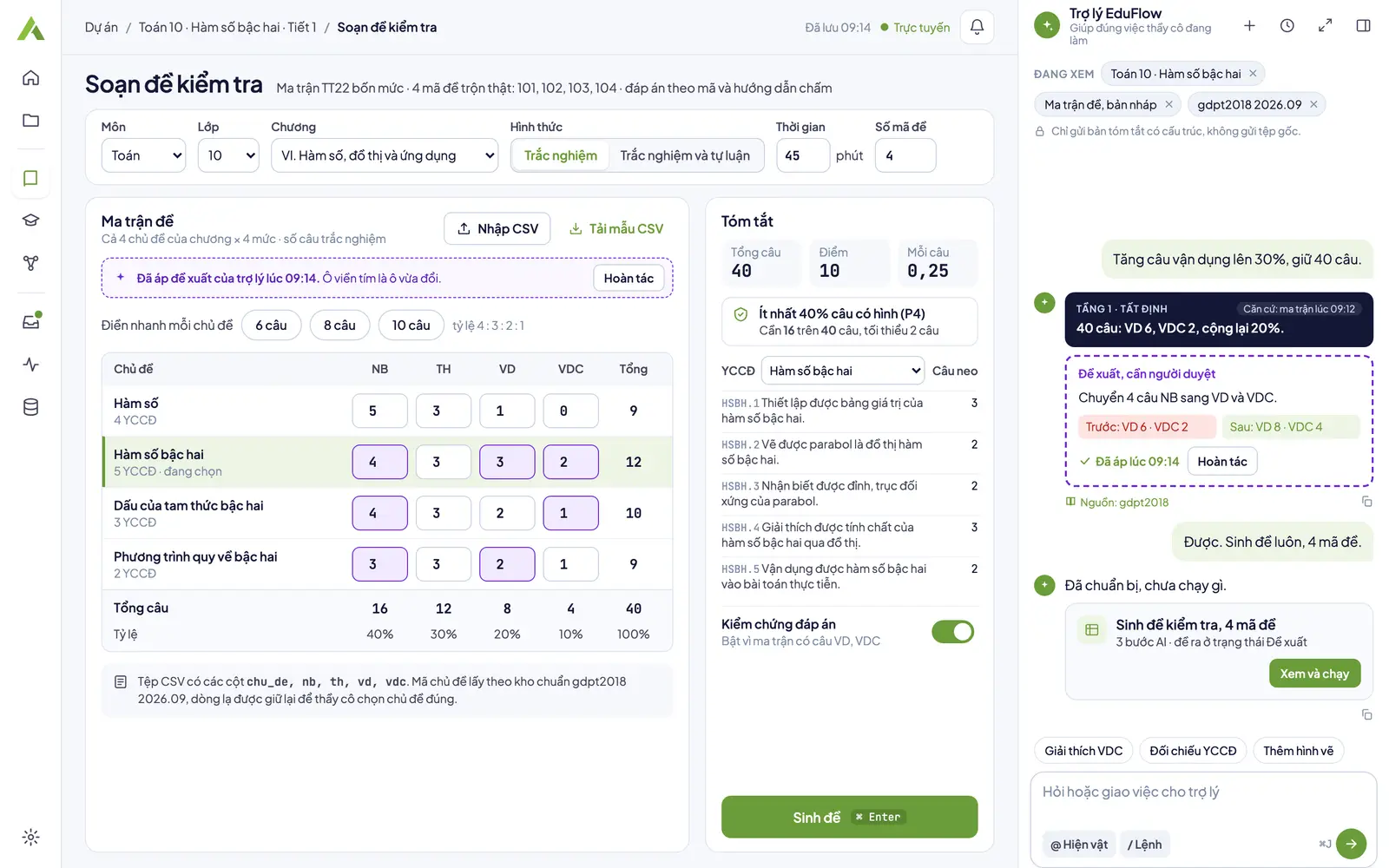
A test blueprint is a table of topics set against four cognitive levels (recognition, comprehension, application, high application), where each cell holds the number of items for that topic at that level. The cells add up to the length of the test, so the blueprint shows which level the test leans on before a single item is written.
A test specification table describes each item: which part it belongs to, which topic, which level, and which learning requirement of the curriculum it checks. In EduFlow the specification is a table with the columns Part, Item, Level, Topic and Learning requirement, printed together with the blueprint in the matrix and specification document.
The number in each cell is the reference for the whole process: AI writes items cell by cell, the quality gate P3 checks that each cell holds the right number of items, and the specification lists the items by level and topic. That is why you settle the blueprint first and let AI write afterwards.
Writing by hand, using ChatGPT, and using EduFlow
| Criterion | By hand | ChatGPT or a general tool | EduFlow |
|---|---|---|---|
| Follows the number in each blueprint cell | You count the items in each cell as you write. | You give the number per cell in your prompt and recount the result yourself. | AI writes items to the number in each cell. Gate P3 checks each cell; on a mismatch the app regenerates up to 2 times. |
| A specification comes with the test | You build a separate table yourself. | You can ask for a table; you adjust the layout yourself. | A matrix and specification document lists every item by level, topic and learning requirement. |
| Re-checking the answers | You solve each item again yourself. | You can ask it to solve the items again in the conversation; you compare the results. | When the matrix has application or high-application items, an independent AI pass solves them again. Answer warnings need your confirmation item by item. |
| Several test versions | You shuffle items and options and build each key yourself. | You can ask it to reorder; you check the key of each version yourself. | Up to 24 versions (codes 101 to 124), with deterministic shuffling of items and options and a check that the key matches each version before saving. |
| A printable file for the exam room | You lay the test out in a word processor. | It returns text that you paste and lay out. | Export to PDF or DOCX; the test, the answer key and marking guide, and the matrix and specification are three separate documents. |
| Who approves the test | You review and approve it by your school's process. | You review the content and record the approval yourself. | The test stays a proposal until you press approve; the approval evidence is saved in the version. An unapproved test can still be exported, with a DÙNG THỬ (trial) watermark. |
Table checked on 15 Oct 2026.
The four cognitive levels in EduFlow
The blueprint has four columns: recognition (NB), comprehension (TH), application (VD) and high application (VDC). You type the number of items into each cell, or use one of three quick-fill buttons that split the total across topics by a template ratio.
- 15 minutes: 10 items, with a ratio of 50, 30, 20, 0 across NB, TH, VD, VDC.
- 45 minutes, mid-term: 20 items, with a ratio of 40, 30, 20, 10.
- End of term: 28 items, with a ratio of 30, 40, 20, 10.
- Blueprint size: A blueprint holds up to 40 topic rows, a test up to 200 items and each topic up to 120 items. The blueprint can also be imported from and exported to a CSV file, to edit in a spreadsheet.
The quality gates of a test
Once AI has written the items, the export step shows a gate table with 8 gates. Each row gives the gate code, the units checked (items, blueprint cells, versions), the violations and the result. A gate that checked 0 units does not count as passed: the app reports a gate error, because the input data has a problem.
- P3: Each cell holds the right number of items.
- P5: Every item has exactly 4 options and 1 answer; an answer that still carries a warning needs confirmation.
- P11: Every item is anchored to a learning requirement.
- P10: The test has been approved by a teacher; it reads as waiting for approval until you approve.
- P1, P2, P4: In this release they read as not applicable or off, because the app does not compile with LaTeX yet and items have no figures yet.
- Cost: Before AI runs, the app shows a cost estimate box; cancel and no job is created and nothing is charged. How cost is calculated is explained on EduFlow pricing.
Build a test from a blueprint with EduFlow
These steps follow the test screen of the app; each step has a detailed guide.
- Open the test screen. Click create test on the home screen, write a test in the sidebar, or new test inside a K-12 project, then pick the subject and grade. The test is created on your computer straight away. Create a test from a blueprint
- Set up the test. Pick chapters from the GDPT 2018 framework stored on your computer, the test type, the time, the form (multiple choice, or multiple choice plus essay) and the score scale. The test header is only printed on the test and never sent to AI. Create a test from a blueprint
- Build the blueprint across four levels. Type the number of items into each NB, TH, VD, VDC cell of your topics, or use quick fill. While the blueprint has no items, the generate button stays locked and says why. Create a test from a blueprint
- Let AI write the items. Click generate, read the estimated cost in the dialog, then run it. When it finishes, items are listed by topic and level in the questions step, and each item has an edit button. Create a test from a blueprint
- Read the quality gates and approve. In the export step, read the gate table, confirm each answer warning, then approve. At the K-12 level, approval is the last step, with no separate signing step. Create a test from a blueprint
- Export several test versions. Choose the number of versions from 1 to 24, switch the shuffling of items and options on or off, read the export checks, then export PDF or DOCX for the test, the answer key and the matrix. Export a test in several versions
What EduFlow does not do yet
- True or false items, short answer items and essays with sub-parts (several parts, each with points): not available, on the roadmap. A test has two forms today: multiple choice, and multiple choice plus essay with essay tasks that carry points and a marking guide.
- The three levels of Official Letter 7991 (know, understand, apply): not available; the blueprint uses four levels.
- Figures in items and compiling LaTeX to PDF: not available. AI does not draw figures; formulas written in an item still show in the preview.
- Uploading a sample test for AI to analyse and rewrite: not available, on the roadmap. A blueprint can be imported from a CSV file.
- AI writes a proposal only: you check, edit and approve it before using it in class. Generating items needs a network connection.
Related topics
- Part ofAI for teachers
- Shuffle test versionsReorder items and options into several versions, each with its own correct key, exported to Word or PDF.
- AI lesson plan generatorAI drafts a lesson plan in the Official Letter 5512 structure with four activities; you approve, then export Word or PDF.
- AI slide generatorAI writes a 16:9 deck with quizzes in the lesson; you preview, check the gates, approve, then export PDF or PPTX.
- Course syllabusWhat a course syllabus contains, how to write CLOs and a weekly plan; EduFlow tools for courses are on the roadmap.
- EduFlow vs ChatGPTWhen ChatGPT is enough for tests and lesson plans, and when you need a blueprint, gates, test versions and a reviewer.