
Chat with AI throughout your work, while people still make the decisions
The home screen is a chat box. Every work screen has an assistant panel on the right that expands to full screen when needed.
Always next to the work you are doing
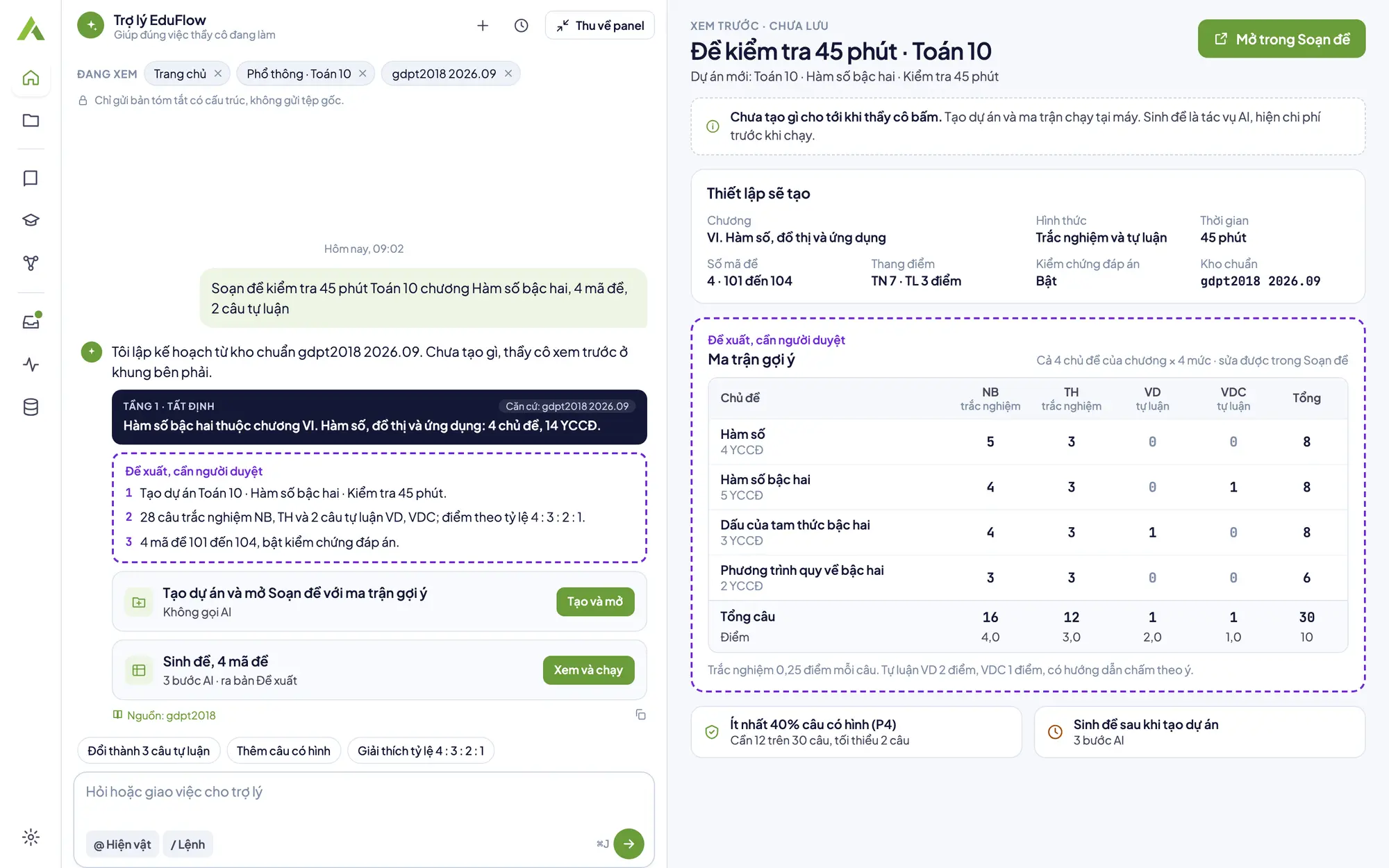
The home screen is a chat box
Type something like “Create a 45-minute Grade 10 Math test, 4 test versions” and the assistant prepares the setup for you to check.
A panel on every screen
A panel on the right of every work screen that collapses and opens with the ⌘J or Ctrl J shortcut.
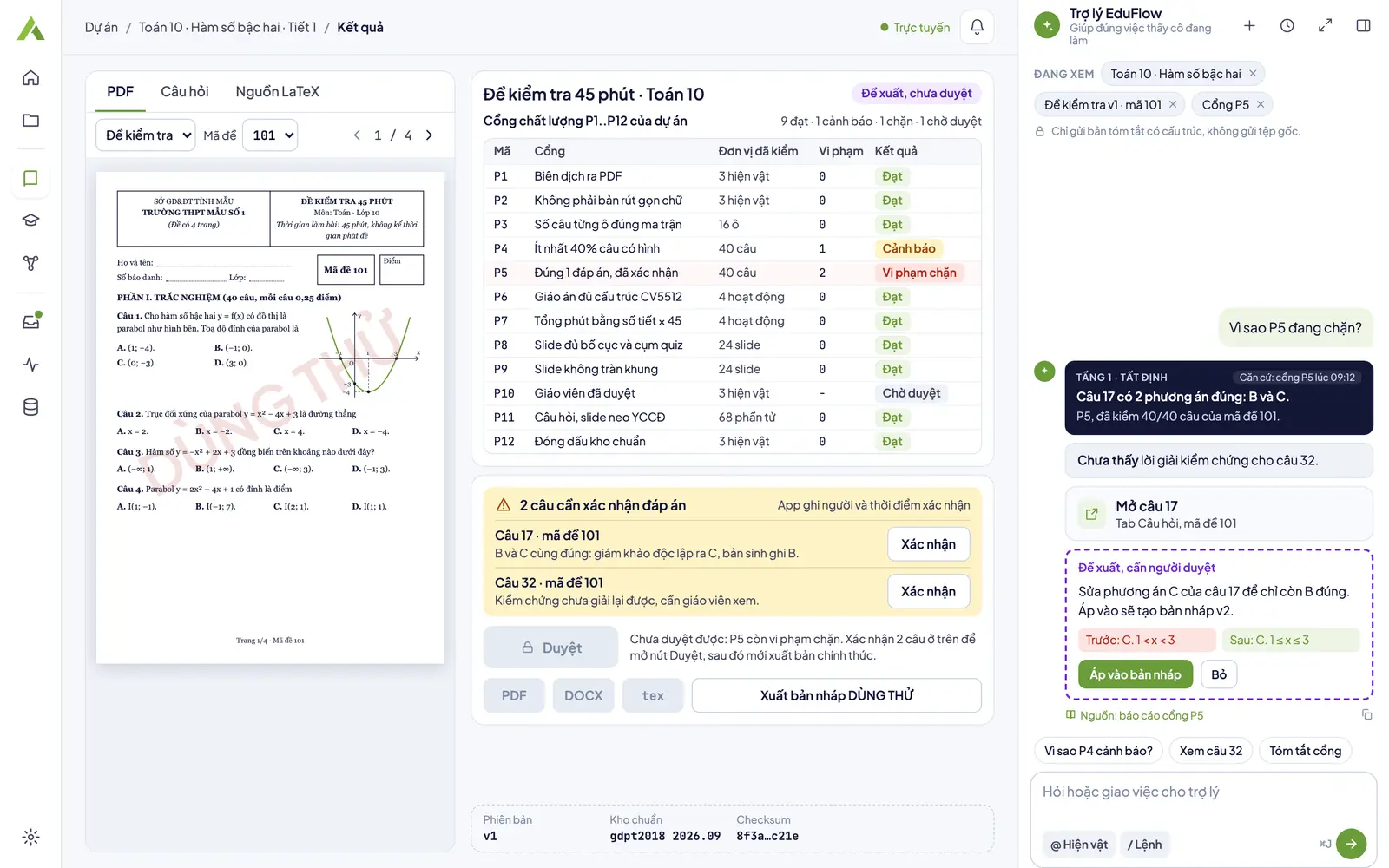
Expand to full screen
Expand the panel over the whole work area to read long answers, then shrink it back or press Esc without losing a single message.
Clear about what the assistant knows and what it may do
- Helps with what you are working onThe “Viewing” chips list each context item. Only a structured summary is sent; remove a chip and that item is not sent.
- Answers in three tiersTier 1 blocks only quote the app's deterministic results, in the app's own words. Tier 2 says “not found yet”. Tier 3 is a suggestion that needs human review. Every citation opens its source.
- Action cardsCards open a screen, create a project, switch AI off for a project or open an editor with the setup filled in: they run on your computer, cost nothing and run only when you click. Generating content with AI still goes through the cost estimate.
- You make the edits yourselfThe assistant's suggestions are text to read; there is no button that applies them to a test or lesson plan. To change something, edit it on the writing screen; editing an approved version always creates a new draft.
What the assistant never does
The assistant only suggests. Asked to do any of these, it tells you which screen to do it on, or that an administrator handles it.
- Approve a test, lesson plan or slide deck
- Confirm answer warnings or gate warnings
- Export files or publish officially
- Change the key or account settings
- Change the monthly budget
Cost per message
The message box shows the cost range per message. Every answer shows its actual cost and token count. Clicking Stop still charges for the part already answered.
Chat history stays on your computer
Conversations are saved on your computer and can be deleted at any time; the AI assistant card in Settings lets you keep history for 30 days, 90 days or with no limit. The server does not store chat content.
The assistant says why, and local work keeps running
Messages are never silently queued; you know right away what you can still do.
Offline
The message box is locked; local commands typed with / still run.
Project has AI off
Nothing leaves your computer for that project.
Key locked
The assistant stops while features that do not use AI keep working; the Check again button asks for the key status again.
Over budget
In block mode, the assistant stops until the 1st of next month or until an administrator raises the budget; local work keeps running.
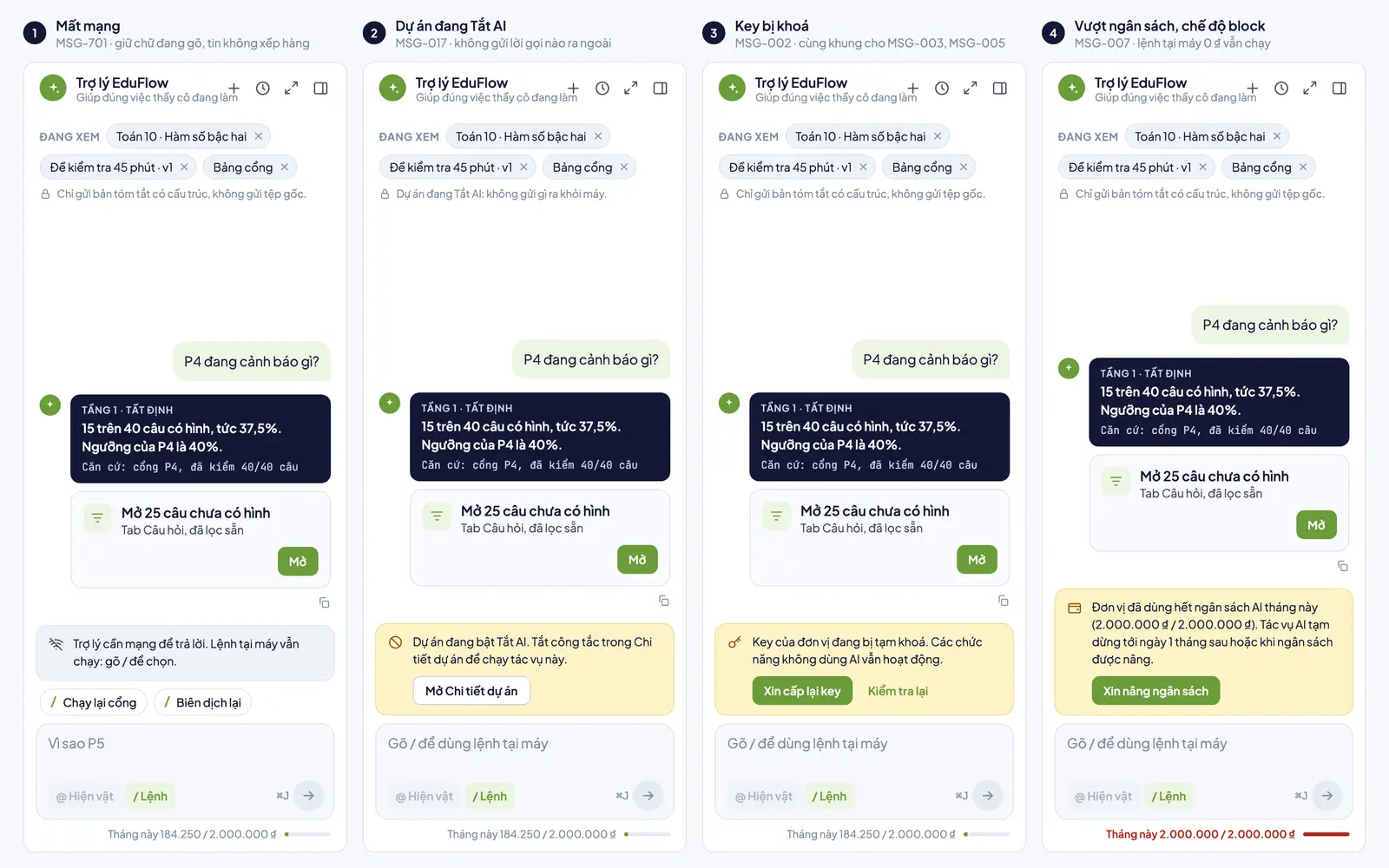
Figures in the screenshots are sample data for illustration.
Try the assistant on your own lesson, course or degree program
Download the app and choose Request a trial on the first screen.