
AI for lecturers: add lecture materials and ask the assistant today, the syllabus is on the roadmap
Create a Course project, add your textbook and lecture materials so the app reads them on your computer, then ask the assistant about those documents. Tools for CLOs, weekly plans, session plans and the course syllabus are on the roadmap and not in the app yet.
For lecturers and heads of department.
A picture of the course tools on the roadmap
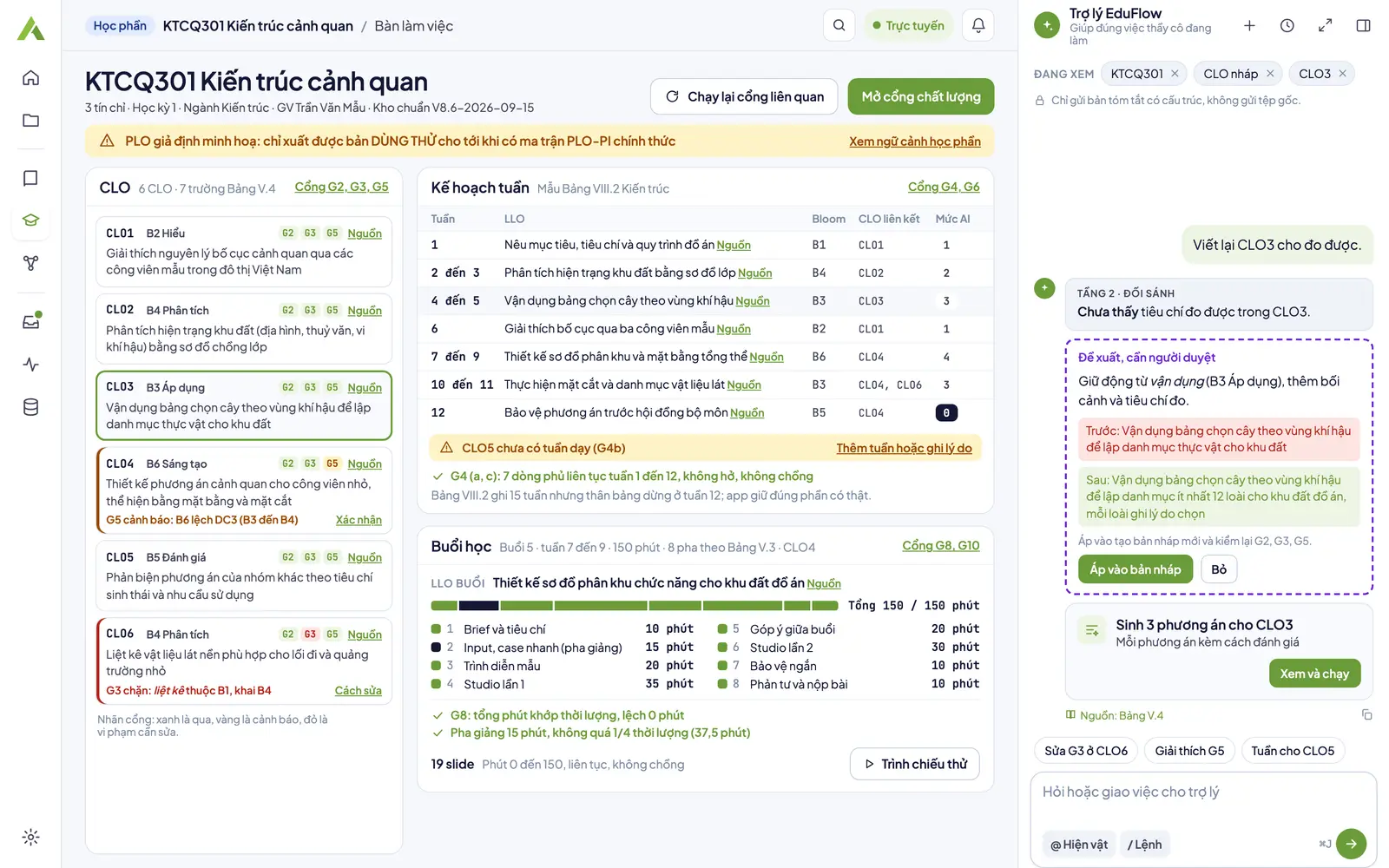
Workbench (planned)
Planned design: CLOs, the weekly plan and sessions on one screen. This screen is not in the app yet.
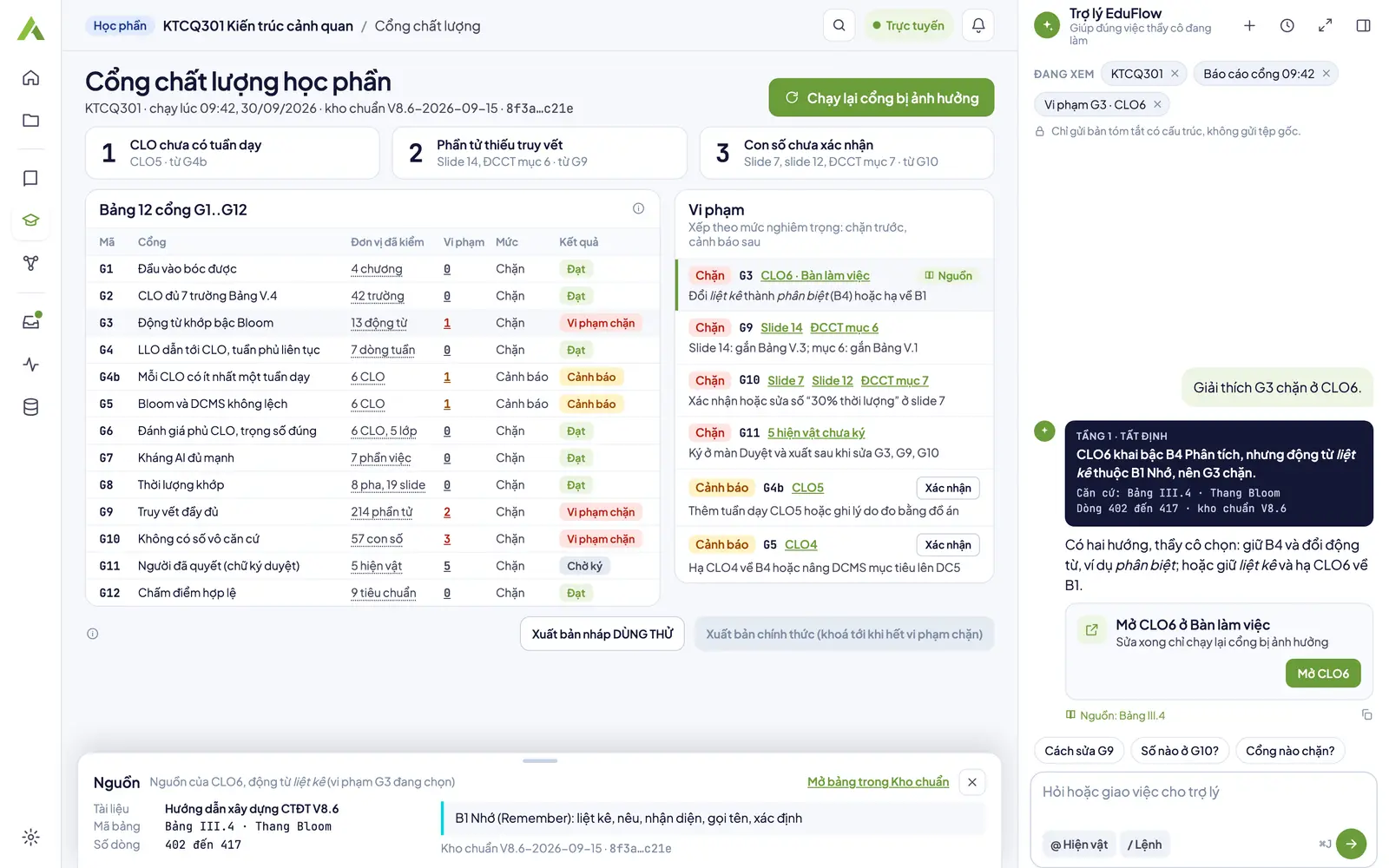
Quality gates (planned)
Planned design: violations sorted by severity, each opening exactly what needs fixing. This screen is not in the app yet.
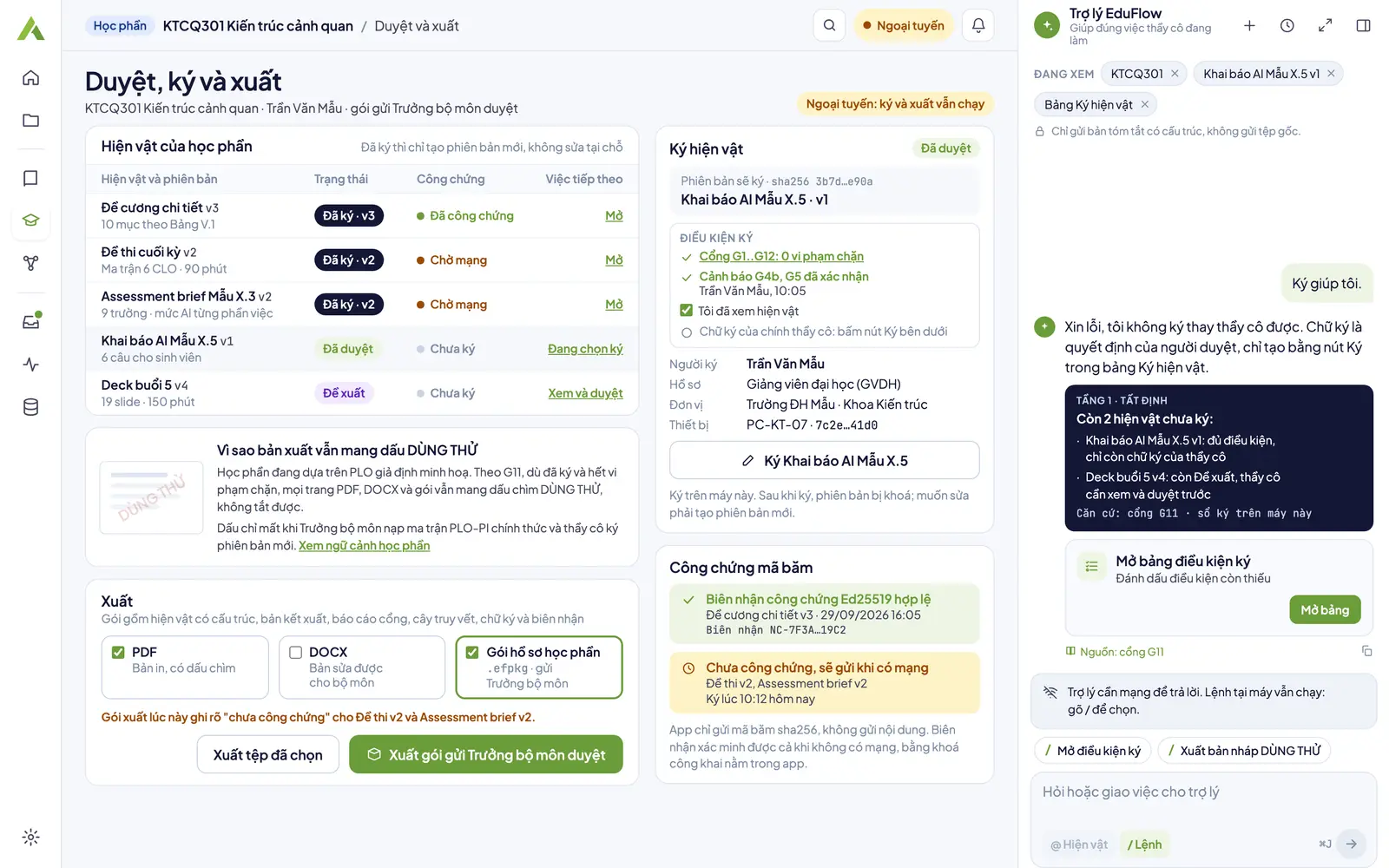
Approve, sign and export (planned)
Planned design: the signing checklist and the package sent to the head of department for approval. This screen is not in the app yet.
Figures in the screenshots are sample data for illustration.
What works today, and what is on the roadmap
A Course project
Create a project at the Course level to keep a course's documents and conversations together. This project has no drafting screen yet.
Add lecture materials and textbooks
Add PDF, Word, PowerPoint or image files, up to 80 MB and 300 pages each; the app reads them on your computer and splits them into passages with a section path and page numbers. Scanned pages and photos are not read into text yet; they wait for OCR.
Search passages on your computer
Type a question to try a search across every document in the project; it runs on your computer, costs 0 VND and needs no network.
Ask the assistant about your documents
The assistant picks matching passages on your computer and shows them as chips you can trim before sending; answers carry a Source chip that opens the exact passage.
Keep private parts private
A do-not-send-to-AI switch locks a section or block; turning AI off for the whole project means no content leaves your computer.
Roadmap: CLOs, weekly plan, syllabus
Not in the app yet: CLOs with a Bloom-level gate, a weekly plan, session plans, a 10-section syllabus with sources, and approval through a signed package. No release date.
Gates G1..G12: on the roadmap
By design, twelve gates, G1..G12, check inputs, CLO fields, Bloom levels, weekly traceability, assessment weights, timing, figures backed by a basis and the approval signature. The app does not have these gates for the Course level yet.
A principle already running at the K-12 level: a gate that checked 0 units shows Gate error, never Pass.
Topic pages for this level
Step by step in the app
- Add documents for the assistantAdd PDF, Word, PowerPoint or images to EduFlow: the app reads text on your computer, cuts passages to search, and sends the assistant the passages you keep.
- Use the AI assistantAsk the EduFlow AI assistant about the open screen, have it prepare a setup, read its three-tier answers, use local action cards, and turn AI off per project.
Frequently asked questions
What does EduFlow do for lecturers?
Today: create a Course project, add lecture materials and textbooks so the app reads them on your computer, search passages and ask the assistant about your documents. On the roadmap, not in the app yet: suggested CLOs, a weekly plan, session plans, assessments and a 10-section syllabus with gates.
How are CLOs checked?
Not in the app yet; it is on the roadmap. By design, a CLO set must have every field of the standard template, with verbs that match the Bloom level; gate G3 catches level mismatches, and you decide the final wording. For now you check CLOs yourself; the course syllabus page explains how to write them.
Are my lecture materials sent anywhere?
Reading, splitting and searching run on your computer, and the original files stay there. When you ask the assistant, only the passages in the chips you keep go with the question; a passage marked do-not-send-to-AI is never sent, and a project with AI turned off sends nothing off your computer.
What does a course syllabus contain?
The syllabus builder is not in the app yet; it is on the roadmap. By design it has ten sections following the standard template, each paragraph with its source, built from approved CLOs, weekly plan and assessments; a section only becomes approved when you mark it as passed. The course syllabus page lists the sections a syllabus usually has.
How does the head of department approve?
Approval through a signed package is on the roadmap, not available at the Course level yet. By design, you send a signed package, a signed version is locked against edits and the server notarizes its hash without seeing the content. For now, approval follows your faculty and school process.
Bring your course materials into EduFlow
Download the app, create a Course project and add your documents; the course drafting tools will follow on the roadmap.